Object Detection with Bounding Boxes for Traffic Monitoring
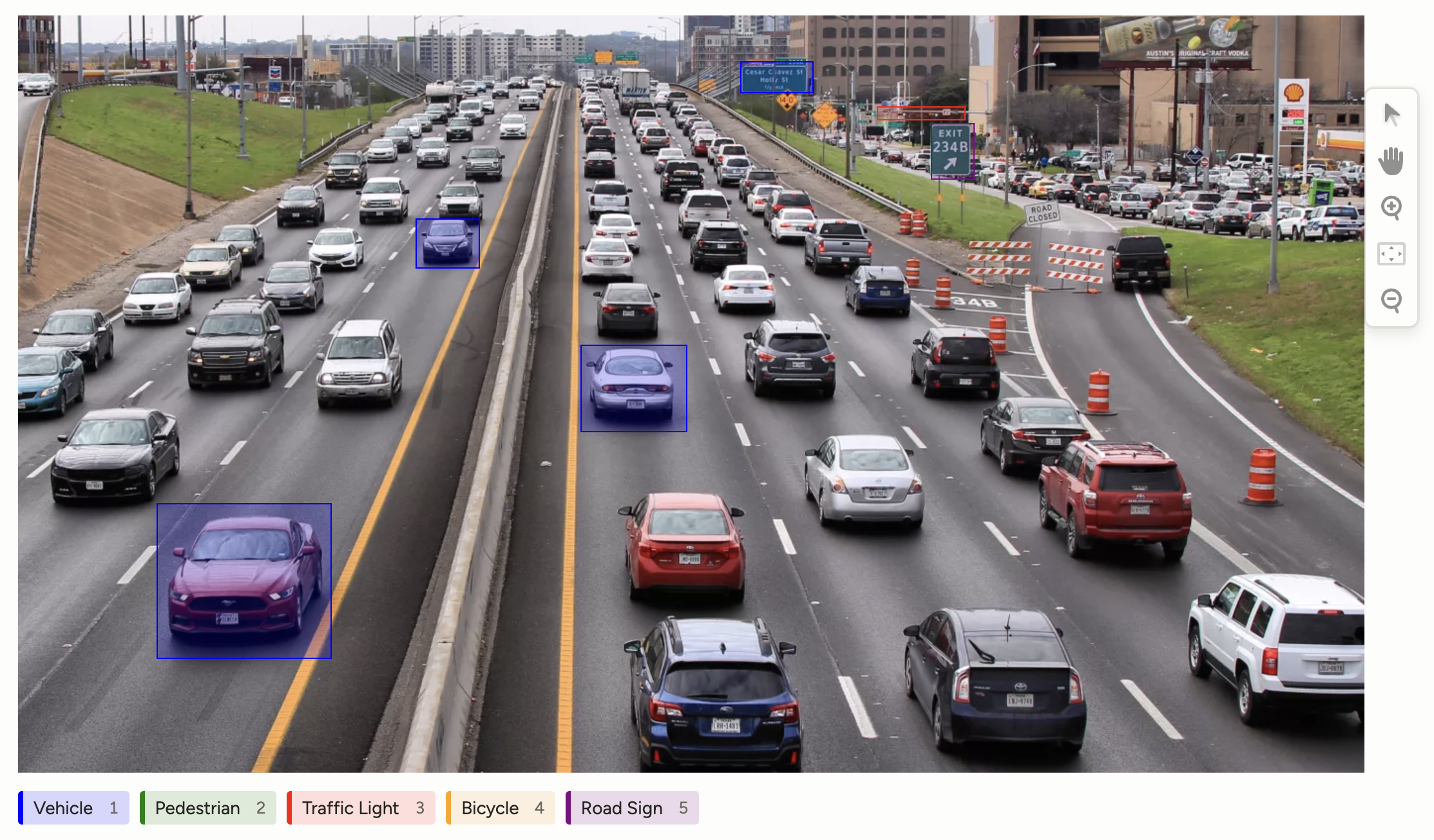
Object Detection with Bounding Boxes labeled data is essential for AI-driven traffic monitoring models, enabling them to accurately identify and classify vehicles, pedestrians, and road signs in real-time. This capability is critical for enhancing traffic management systems, informing autonomous driving protocols, and improving road safety.
However, labeling data for traffic monitoring presents significant challenges. The process is often time-intensive and fraught with inconsistencies due to the complex and dynamic nature of traffic environments. Moreover, specialized domain expertise is often required to accurately interpret and label objects, further complicating the workflow. Label Studio effectively addresses these challenges with its robust hybrid AI + human-in-the-loop approach. By leveraging AI-assisted pre-labeling, our platform accelerates the initial labeling phase, allowing human annotators to focus on validation and refinement. Collaboration tools facilitate seamless communication among team members, while customizable templates ensure that specific domain requirements are met consistently. This results in not only improved model performance but also reduced labeling time and increased expert efficiency, allowing for scalable workflows that adapt to the needs of any traffic monitoring operation.
Labeling configuration
<View>
  <Image name="image" value="$image"/>
  <RectangleLabels name="label" toName="image">
    <Label value="Vehicle" background="blue"/>
    <Label value="Pedestrian" background="green"/>
    <Label value="Traffic Light" background="red"/>
    <Label value="Bicycle" background="orange"/>
    <Label value="Road Sign" background="purple"/>
  </RectangleLabels>
</View>
This labeling configuration is enclosed within View tags.
Use the Image tag to specify the traffic scene image to annotate:
<Image name="image" value="$image"/>Use the RectangleLabels tag to add labels and rectangular bounding boxes for different traffic entities in the image. The Label tags define distinct traffic-related categories and assign specific colors to their bounding boxes for clarity:
<RectangleLabels name="label" toName="image">
  <Label value="Vehicle" background="blue"/>
  <Label value="Pedestrian" background="green"/>
  <Label value="Traffic Light" background="red"/>
  <Label value="Bicycle" background="orange"/>
  <Label value="Road Sign" background="purple"/>
</RectangleLabels>
If you want to add further context to traffic monitoring tasks with bounding boxes, you can add some per-region conditional labeling parameters to your labeling configuration.
For example, to prompt annotators to add descriptions to detected traffic objects, you can add the following to your labeling configuration:
<View visibleWhen="region-selected">
  <Header value="Describe traffic object" />
  <TextArea name="answer" toName="image" editable="true"
            perRegion="true" required="true" />
  <Choices name="choices" toName="image"
           perRegion="true">
    <Choice value="Operational"/>
    <Choice value="Malfunctioning"/>
    <Choice value="Obstructed"/>
    <Choice value="Damaged"/>
  </Choices>
</View>
The visibleWhen parameter of the View tag hides the description prompt from annotators until a bounding box is selected.
After the annotator selects a bounding box, the Header appears and provides instructions to annotators.
The TextArea control tag displays an editable text box that applies to the selected bounding box, specified with the perRegion="true" parameter. You can also add a placeholder parameter to provide suggested text to annotators.
In addition, you can prompt annotators to provide additional feedback about the content of the bounding box, such as the operational status of the item in the box, using the Choices tag with the perRegion parameter.